One of those options is the Azure Storage Blob service. This is your go-to for storing large amounts of unstructured data like images, videos, and backups.

Design for Azure storage accounts
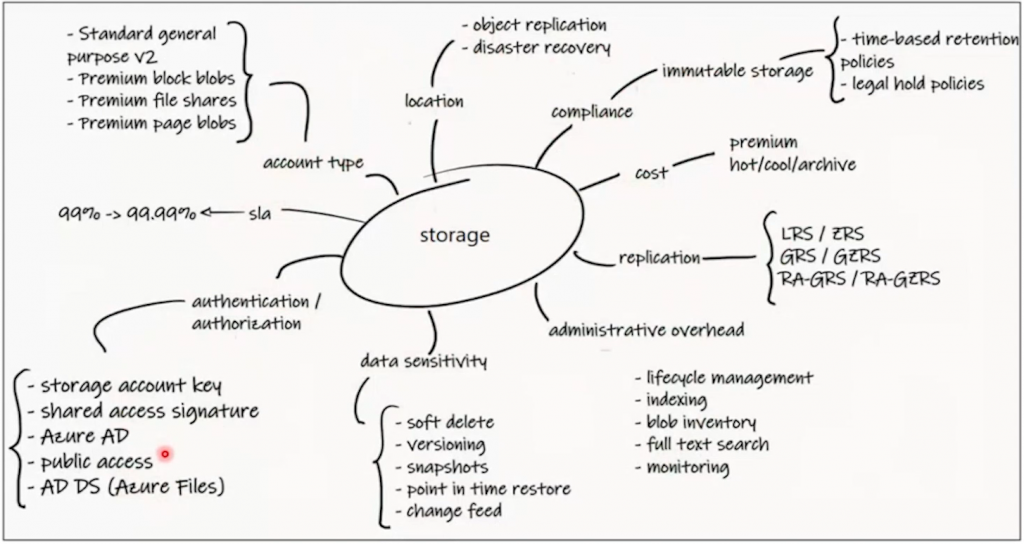
Keep in mind, the accessibility types for this which are things like HTTP, and ACTVS and you want to look at Azure files. You know, know what this service does; it provides Cloud-based files shares and understand how it’s accessed using SMB or NFS.
Then we have our Azure disks which are block-level storage used with virtual machines. You know, keep in mind that these act like physical disks and they’re normally allocated to your virtual machine workloads.
Design for Azure managed disks
And we also have the Azure Storage Queue service; it’s designed for asynchronous communication. So, understand the use cases for that.
****MISSING****
| Storage Type | Considerations |
| Azure Blob Storage | Stores vast amounts of unstructured data and is often used for images and multimedia files. Blob stands for Binary Large Object. |
| Azure Files | Provides fully managed file shares in the cloud. Data is accessible via the industry standard Server Message Block (SMB) protocol, Network File System (NFS) protocol, and the Azure Files REST API. |
| Azure managed disks | Supports Azure Virtual Machines. These disks are block-level storage volumes that are managed by Azure and perform like physical disks in an on-premises server, but in a virtual environment. |
| Azure Queue Storage | Stores large numbers of messages and is commonly used to create a backlog of work to process asynchronously. |
Design for data storage
Design for data redundancy
Design for storage security
Azure File Sync is a service that allows organizations to centralize their file shares in Azure Files while maintaining the flexibility, performance, and compatibility of on-premises Windows file servers. It transforms Windows Server into a quick cache of the Azure file share, enabling local access to files using protocols such as Server Message Block (SMB), Network File System (NFS), and File Transfer Protocol over SSL/TLS (FTPS).
To use Azure File Sync to synchronize on-premises file servers with Azure Files, follow these steps:
- Install the Azure File Sync Agent: You need to install the Azure File Sync agent on the Windows file server that you wish to sync with Azure.
- Register the Server: Register your on-premises Windows Server with the Azure File Sync service.
- Create Sync Groups: Set up sync groups that define which Azure file shares will be synchronized with which on-premises servers.
- Configure Cloud Endpoints: Specify the Azure file shares as cloud endpoints in your sync groups.
- Set Up Server Endpoints: Define the local folders on your Windows Server that will act as server endpoints for the synchronization.
- Monitor and Manage: Use the Azure portal or Azure File Sync tools to monitor the synchronization process and manage your file shares.
By following these steps, you can effectively synchronize your on-premises file servers with Azure Files, ensuring that your data is accessible both locally and in the cloud.
References: