Azure Migrate provides agentless and agent-based discovery, dependency visualization, and assessment capabilities that align directly with the Cloud Adoption Framework migration methodology.
When studying workload migrations in Azure, it’s important to know which tools support different parts of the process.
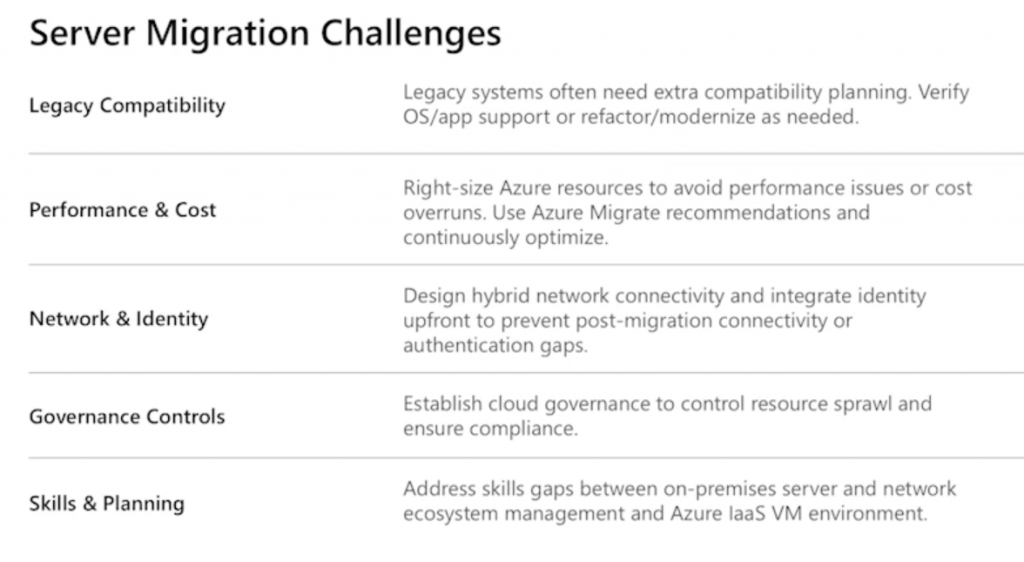
Start with the Azure Migrate Server Assessment. This helps evaluate physical servers and VMs in your environment, like Hyper-V and VMware, before you start moving them to the cloud.
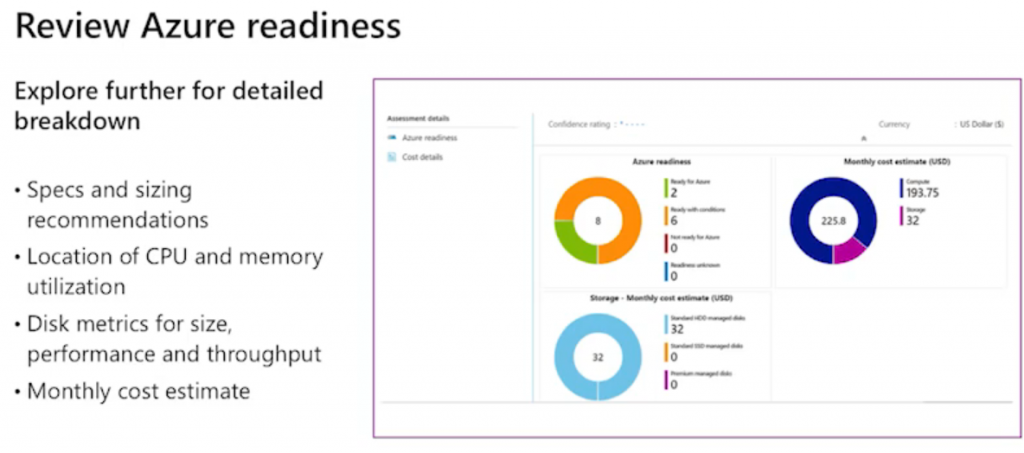
Then there’s a Server Migration, which handles the actual lift and shift of those workloads.
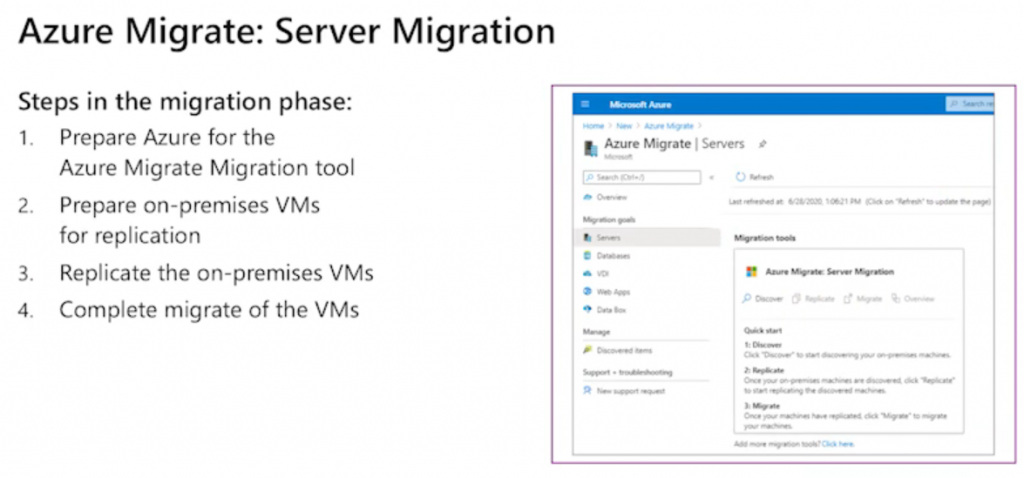
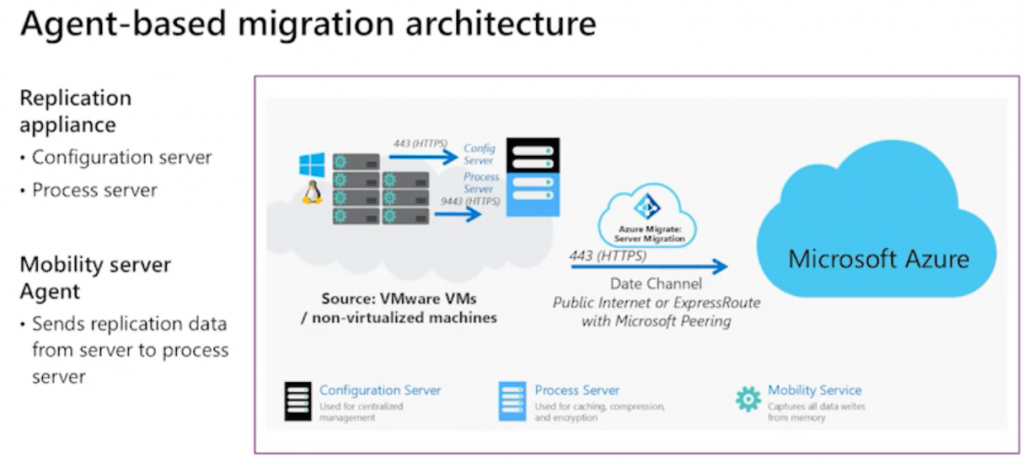
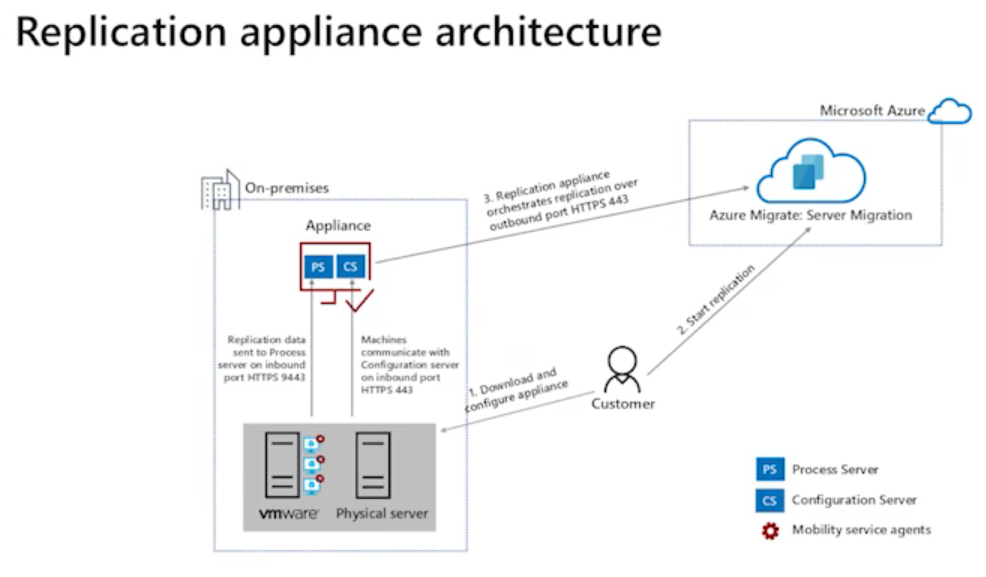
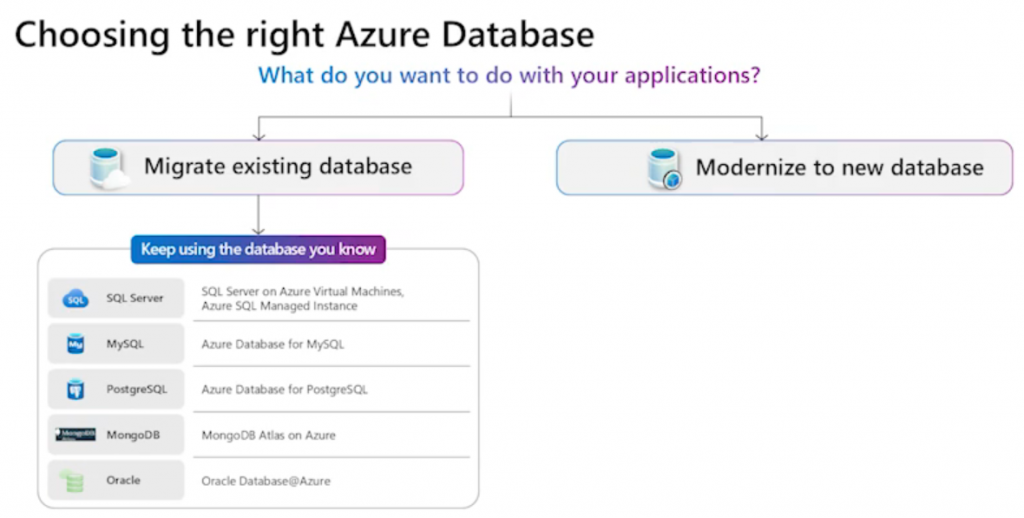
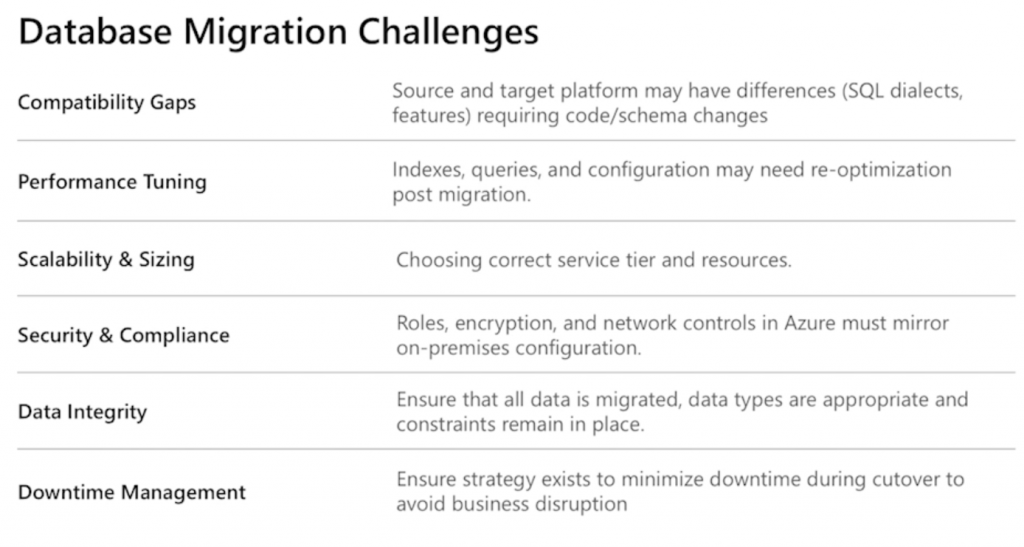
For databases, focus on the database assessment tool to analyze SQL server instances and determine the best fit, whether that’s an Azure SQL database, a managed instance, or an IaaS based solution.
Then you have the database migration tool, which takes care of moving the data itself.
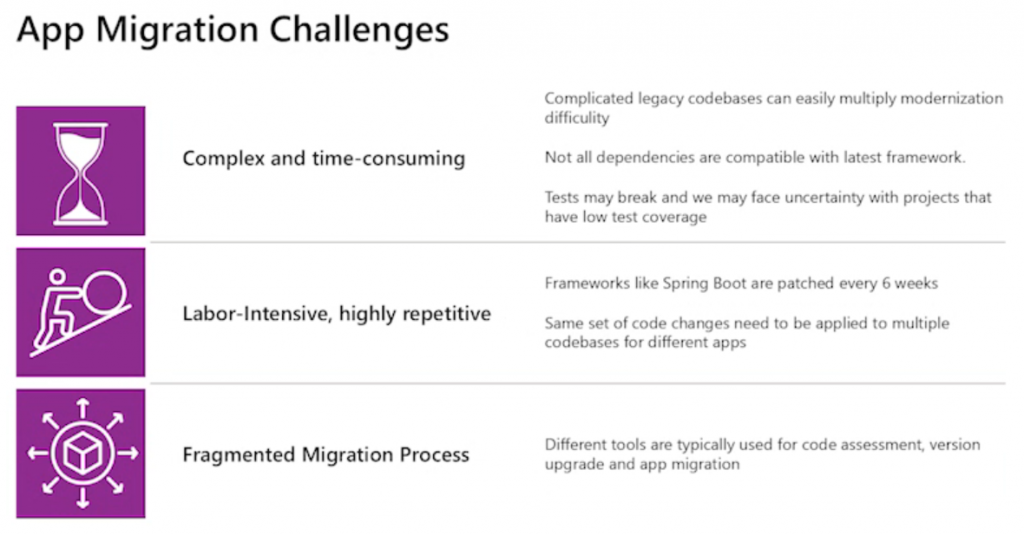
And don’t forget the Web App Assessment, which evaluates on-prem web apps before migrating them into your Azure app services.
And for large scale data transfers, study up on the Azure Data Box. Keep that in mind.
So understand each of these tools. Understand in what phase these tools fall into, and how you would use them.
Before you can start migrating on-premises workloads to Azure, you should consider creating a migration plan. The plan should identify the workloads to migrate, and the appropriate service or tools to use during the migration. Ideally, your plan should also include details about how to optimize the migrated services.
The Azure migration framework can help you develop your plan and work through your migration. The framework consists of four stages: Assess, Migrate, Optimize, and Monitor.
Stage 1: Assess your on-premises environment
- Identify the apps
- Start to involve stakeholders
- Create full inventory
- Estimate cost
- Identify tools
Migration strategy patterns
| Rehost | Refactor | Rearchitect | Rebuild |
|---|---|---|---|
| Lift-and-shift Doesn’t require code changes Move workloads quickly to the cloud Move a workload without modifying it For apps designed to take advantage of Azure IaaS scalability after migration When workloads are important to your business, but you don’t need immediate changes to app capabilities | Repackaging: Requires minimal changes Move to PaaS offerings Apps to Azure App Service or Azure Kubernetes Service (AKS) Databases to Azure SQL Managed Instance, Azure Database for MySQL, Azure Database for PostgreSQL, and Azure Cosmos DB Apply innovative DevOps practices provided by Azure Implement a DevOps container strategy for workloads Support portability of your existing code base and available development skills | Modifying and extending app functionality Move to PaaS offerings Break down a monolithic application into a group of microservices Relational and nonrelational databases to a fully managed database solution Your apps need major revisions to incorporate new capabilities Your apps need major revisions to work effectively on a cloud platform Use existing application investments Meet scalability requirements Apply innovative DevOps practices Minimize use of virtual machines | Green-field Completely rebuilding an app Rapid development Support existing apps with limited functionality and lifespan Expedite business innovation by using DevOps practices Rebuild with new cloud-native technologies like Azure Blockchain, Azure Functions, Azure AI, Azure SQL Managed Instance, and Azure Cosmos DB Rebuild legacy applications as “no code apps” or “low apps” in the cloud |
Serivces or Tools to help with the migration:
| Service or tool | Stage | Description |
|---|---|---|
| Azure Migrate | Assess & Migrate | Azure Migrate performs assessment and migration to Azure of virtual machines (Hyper-V and VMware), cloud-based virtual machines, physical servers, databases, data, virtual desktop infrastructure, and web applications. |
| Database Migration Service | Assess & Migrate | The Azure Database Migration Service performs assessment and migration for several different databases, not just Azure SQL Database. |
| Data Migration tool | Migrate | The Azure Cosmos DB Data Migration tool migrates your existing databases to Azure Cosmos DB. |
| Microsoft Cost Management | Optimize | Microsoft Cost Management helps you monitor, optimize, and control your ongoing Azure costs. |
| Advisor | Monitor | Azure Advisor helps optimize your Azure resources for reliability, performance, cost, security, and operational excellence. |
| Monitor | Monitor | Azure Monitor collects monitoring data from both on-premises and Azure resources that help you analyze data, set up alerts, and identify problems. |
| Microsoft Sentinel | Monitor | Microsoft Sentinel provides intelligent security analytics for your applications that enable you to collect, detect, investigate, and respond to incidents. |
Azure Migrate capabilities:
Agentless environment discovery or use agents to perform a dependency analysis
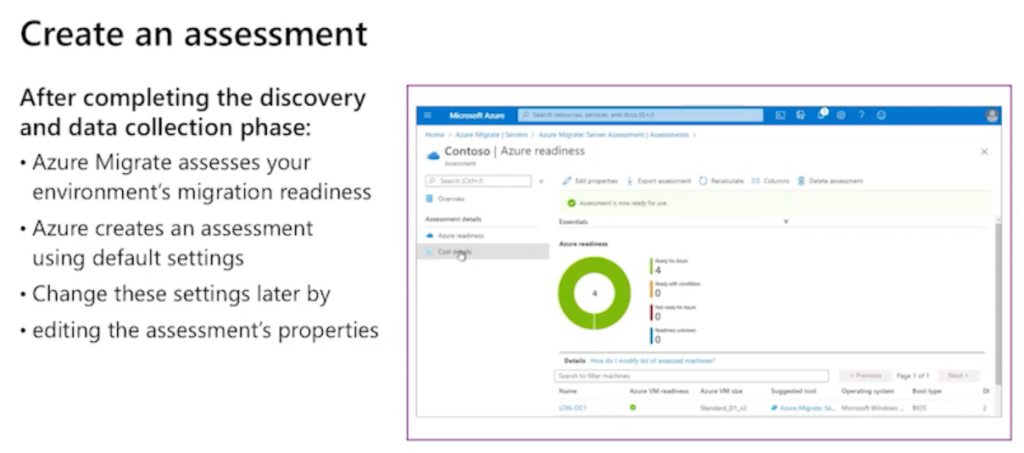
Makes recommendations for the size of virtual machines
Helps identify estimated costs for the resources with performance-based sizing calculations
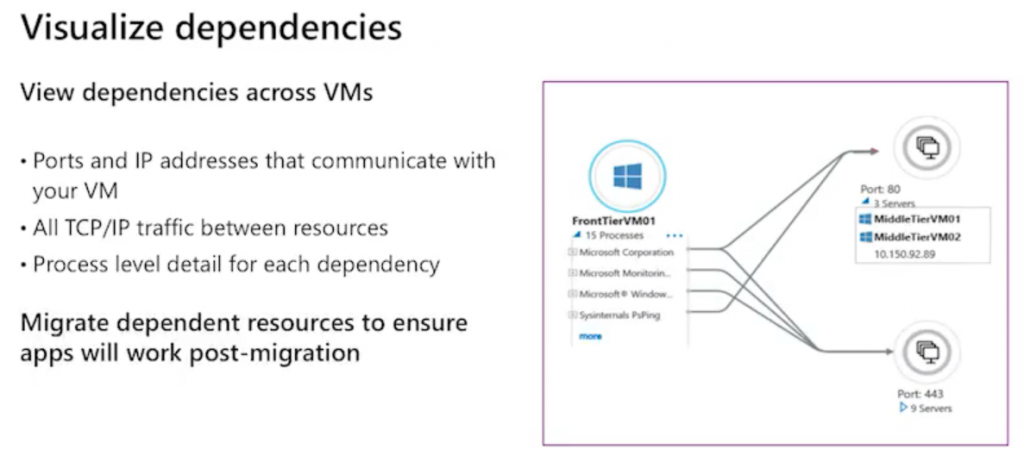
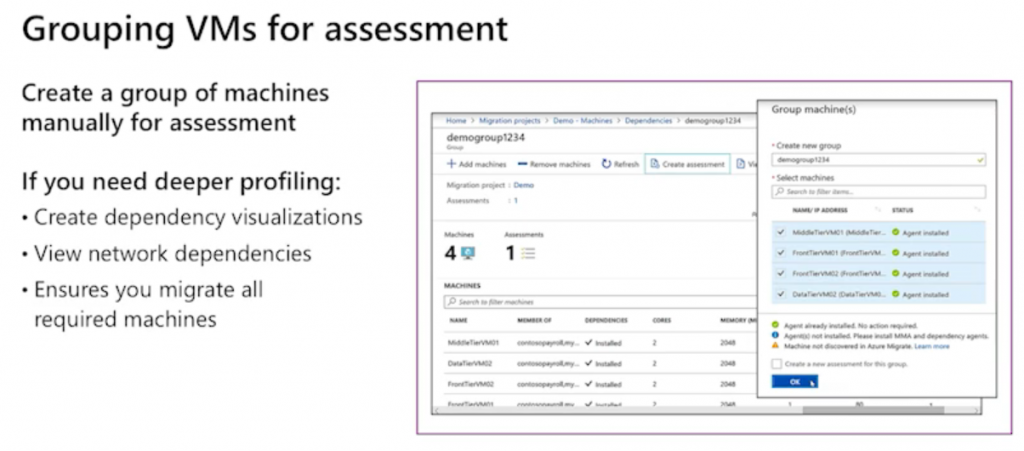
supports the visualization of dependencies
Azure Migrate Discovery and assessment tool
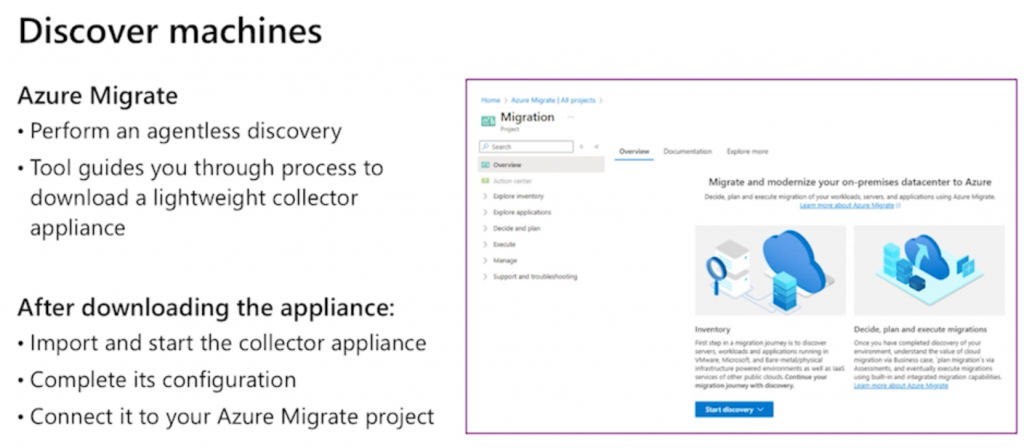
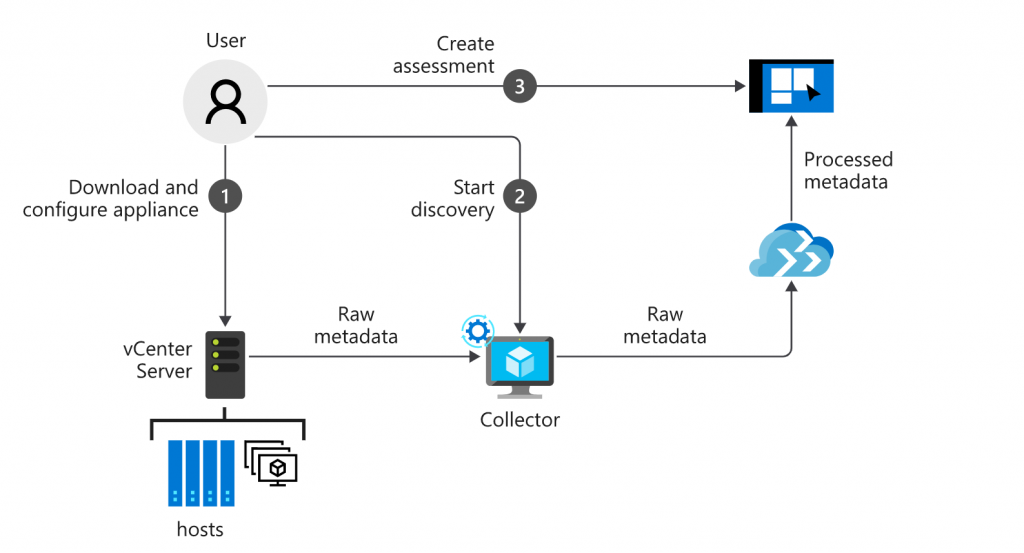
The Azure Migrate Discovery and assessment tool guides you through downloading a lightweight collector appliance. The appliance carries out the discovery of systems in your environment. The tool uses data collected by the appliance to identify data about virtual machine cores, memory, disk sizes, and network adapters. Where applicable, the collector also gathers performance data like CPU and memory usage, disk IOPS, disk throughput, and network output. After data collection is complete, the data is pushed to your Azure Migrate project. In the Azure portal, you can view the discovered systems and download a report.
Azure Migrate Discovery and assessment tool workflow:
Azure Migrate tools:
| Tool | Usage |
|---|---|
| Azure Migrate: Discovery and assessment | Discover and assess servers including SQL and web apps |
| Azure Migrate: Migration and modernization | Migrate servers |
| App Service Migration Assistant | Migrate .NET web apps from Windows OS to App Service |
| SQL Server Data Migration Assistant (DMA) | Assess SQL Server databases for migration to Azure SQL Database, Azure SQL Managed Instance, or Azure virtual machines running SQL Server |
| Azure Database Migration Service | Migrate on-premises databases to Azure virtual machines running SQL Server, Azure SQL Database, or SQL Managed Instances |
| Azure Data Box | Migrate offline data |
Stage 2: Migrate your workloads
- Deploy cloud infrastructure targets
- Depending on the tools you use to perform the migration, you might need to create the required Azure resources before you begin the migration. Some tools, such as Azure Migrate and Azure Database Migration Service can create the target Azure resources for you.
- Migrate workloads
- It’s a good idea to pilot your workload migration, and to choose a noncritical app for the pilot. This approach enables you to become familiar with tools, gain experience with processes and procedures, and reduce risk when migrating large or complex workloads.
- Decommission on-premises infrastructure
- After you’re satisfied that your source apps and databases are migrated successfully, you need to decommission the source workloads. Consider retaining the source workload backups and archived data. This data might prove useful as it provides a historical archive. You can store these backups and archives in Azure Blob Storage.
Stage 3: Optimize your migrated workloads
- Analyze migration costs for your workloads. Use Microsoft Cost Management
- Review recommendations for reducing your costs. Use Azure Advisor
- Identify options for improving your workload performance.
Stage 4: Monitor your workloads
- Use Azure Monitor to capture health and performance information
- Set up alerts based on a range of data sources
Azure Resource Mover
Tool that helps move your Azure resources between subscriptions, resource groups, and regions. Azure Resource Mover provides the following advantages:
- A single location for moving resources.
- Simplicity and speed in moving resources.
- A consistent interface and procedure for moving different types of Azure resources.
- A way to identify dependencies across resources that you want to move.
- Automatic clean-up of resources in the source region.
- The ability to test a move operation before you commit it.
You can use Azure Resource Mover in two ways: - Before you migrate, to organize your resources.
- After you migrate, to optimize your resource organization.
After you migrate your workloads to Azure, consider using Azure Resource Mover to move any of your recently migrated resources across subscriptions, regions or resource groups.